
Install & run
There is no installer, and you don't need .NET or anything else.
- 1Right-click the downloaded zip → Properties → tick Unblock at the bottom → OK (this clears the “downloaded from the internet” mark Windows adds).
- 2Extract the zip to any folder, e.g.
C:\Tools\Cliply. - 3Run
Cliply.exe. No window opens — a blue>_icon appears in the notification area (system tray) at the bottom right of the taskbar. If you don't see it, click^to show hidden icons. - 4If “Windows protected your PC” appears, click [More info] → [Run anyway]. You only need to do this once.
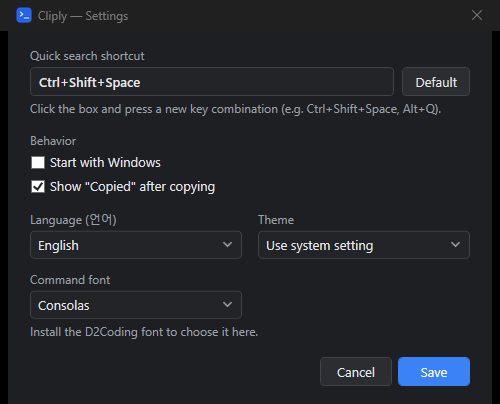
- 5To start it with Windows: right-click the tray icon → Settings → tick “Start with Windows” → Save. If you later move
Cliply.exe, run it once from the new location so the startup path is updated.
Why the “Windows protected your PC” warning appears
Cliply is not signed with a paid code-signing certificate, so Windows SmartScreen warns on first launch. To confirm the file is genuine, right-click Cliply.exe → Properties → Details and check that the company is “애드소프트 (Addsoft)”, and that the SHA-256 under “Verify the file” below matches.
Language
Cliply follows your Windows display language: Korean if Windows is in Korean, English otherwise. To change it, right-click the tray icon → Settings → Language → Save. The screens switch immediately.